
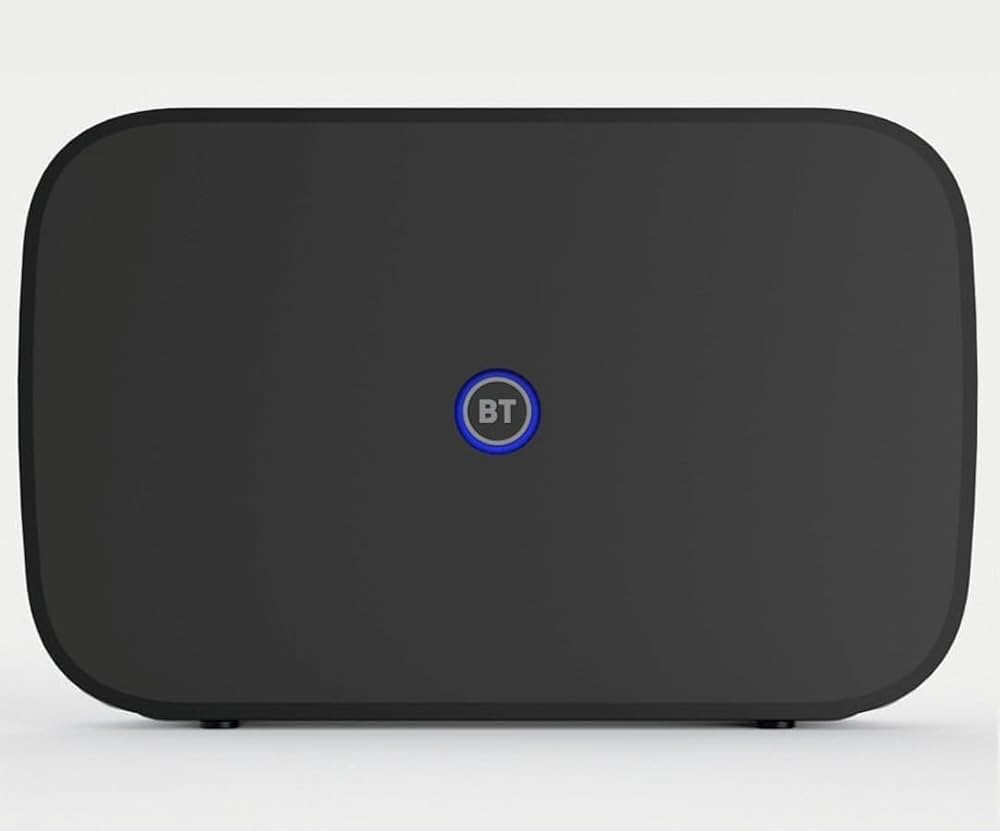

BT Business Router Lights

Connection Worx
A simple step-by-step guide to get you back online. Don't worry, this is a common issue
Seeing a purple light on your router can look a bit alarming, but it's actually one of the more straightforward problems to fix. In most cases, it just means your router can't currently reach the internet, usually because of a loose cable or a temporary connection issue. Follow the steps below in order, and hopefully you'll be back online in a few minutes.
First, a quick bit of background
Your router (the box that gives you Wi-Fi) uses different coloured lights to tell you what it's doing. Think of it like a little traffic light system:
- Blue light = all good, you're connected to the internet
- Orange light = it's in the process of connecting
- Green light = it's just starting up
- Purple light = it can't find a broadband connection right now
- Red light = there's a fault with the router itself
A flashing purple light simply means your router is switched on and working fine, but it isn't able to reach the internet at the moment. This is usually caused by something simple, like a cable that's come loose, rather than anything seriously wrong.
If you have a newer router (a BT Smart Hub 2 or Smart Hub 3) and you see a solid purple light that isn't flashing, that means your router has automatically switched to a backup mobile connection to keep you online while it sorts out the main connection. You should still have some internet in this case, just not at full speed.
Step 1: Take a look at your router
Have a quick look at the front of your router and check:
- Is the purple light flashing or staying on solid?
- Are there any other lights on, or is purple the only one showing?
Just make a mental note of this. It'll help if you need to call us later.
Step 2: Check the simple things first
Before anything else, it's worth checking a few basics. These take less than a minute and solve the problem more often than you'd think.
- Check the power. Make sure your router is properly plugged in at the wall and that the socket is switched on.
- Check the cables. Look at the back of your router. You'll see a cable (usually black, with grey plastic ends) that runs from the router to your wall socket. Gently push both ends in firmly, you should feel or hear a small click when it's properly connected.
- Check for damage. Have a quick look at the cable itself. If it looks chewed, frayed, or damaged (this happens more than you'd think if you have pets or young children about), that could be the cause.
- If you use a small white or grey box on the cable (called a filter), check that it's plugged in properly too, and try reseating it.
If anything was loose, plug it back in properly and wait a couple of minutes to see if the light changes.
Step 3: Turn it off and on again
This might sound obvious, but it really does fix a lot of issues.
- Unplug your router from the power socket at the wall.
- Wait 30 seconds. This is important, don't rush this bit.
- Plug it back in.
- Wait up to 4 minutes. Your router will go through a little startup sequence (you might see green, then orange, then hopefully blue). This is completely normal, just give it time.
If the light turns blue, you're back online. If it's still purple after 4 minutes, move on to the next step.
Step 4: Do you have a phone line?
If you have a landline, pick up the handset and listen.
- Can you hear a dial tone? That's a good sign, it means your phone line itself is working.
- No dial tone at all? This suggests the issue might be with the line coming into your home, rather than your router.
Step 5: Try the master socket (if you're comfortable doing so)
Somewhere in your home, there's usually a socket where your phone line enters the building. This is called the master socket, and it often has a removable front cover.
If you know where this is:
- Unplug your router from wherever it's currently connected.
- Plug it directly into the master socket instead (behind the removable cover, if there is one).
- Wait a few minutes and see if the light changes to blue.
This step is entirely optional. If you're not sure where your master socket is, or you'd rather not move anything, that's absolutely fine, just skip to Step 6.
Step 6: Check if it's a wider issue in your area
Sometimes the problem isn't in your home at all. There could be a temporary issue affecting broadband in your local area, which is completely out of your hands and usually gets fixed automatically.
If you have the My BT app on your phone, or access to the internet another way (like your mobile data), you can check the BT Service Status page to see if there's a known issue nearby.
When to give us a call
Please get in touch if:
- You've been through all the steps above and the light is still purple
- The light is solid purple and has stayed that way for a while
- You have no dial tone on your home phone
- You've noticed storm damage or visible damage to cables outside your home
- You'd simply rather have some help talking it through
There's no need to worry about "getting it wrong." Just give us a call and let us know what you've already tried (it really helps if you can tell us whether the light was flashing or solid, and what happened when you turned it off and on again). We'll take it from there.
A quick reminder of what each light means
| Light colour | What it means |
|---|---|
| No light | No power reaching the router |
| Green | Starting up, this is normal for a few minutes |
| Orange (flashing) | Connecting to the internet, this is normal |
| Orange (solid) | Router is on but not connected, worth a reboot |
| Blue | All good, you're connected |
| Purple (flashing) | No broadband connection, follow the steps above |
| Purple (solid) | Running on backup connection while the main line reconnects |
| Red | A fault with the router, please give us a call |
You're doing great. Most purple light issues are resolved with a simple cable check and a reboot. If not, we're only a phone call away.